How GradeBridge moves grades into PowerSchool
GradeBridge is a Chrome extension that copies grades from Google Classroom and other classroom platforms and enters them into the PowerSchool teacher gradebook (PowerTeacher Pro). You copy grades from the page you have open, check a preview, and GradeBridge types the scores into PowerSchool for you. It works with Google Classroom, DeltaMath, Wayground (formerly Quizizz), Schoology, Google Sheets, AP Classroom, Gradient (GradeCam), Edpuzzle, IXL, Khan Academy and Canvas, and with grades on your clipboard from a spreadsheet such as Excel.
Four steps from copy to checked
Copy grades from your platform
Open the assignment in Google Classroom, DeltaMath or another supported platform, open GradeBridge (or press Ctrl+Shift+G) and click Copy grades. GradeBridge detects the platform, reads the names, scores and status tags such as Missing and Late from the page you have open, and shows a copy preview. In Google Sheets you can also right-click a selection. Copying never counts toward your free pastes.
Open the same assignment in PowerSchool
In PowerTeacher Pro, open the class and either the assignment's score page or the scoresheet with all your assignments. On the scoresheet, GradeBridge finds the right column itself: the one it used last time, the one you clicked, or a column with the same name. If the assignment doesn't exist yet, it can create it for you.
Review the paste preview
Click Paste grades. Before anything is typed, GradeBridge lists every student on your PowerSchool roster with the score it will enter, marks exact matches, close matches and students it couldn't match, and shows the class average. You can convert scores to the assignment's points, apply a curve, or match a student by hand.
Paste, then check
Click Paste. GradeBridge enters each score and tag, then reads every cell back and lists anything that didn't save. If something looks wrong, Undo this paste puts the cells back for 24 hours.
What it looks like
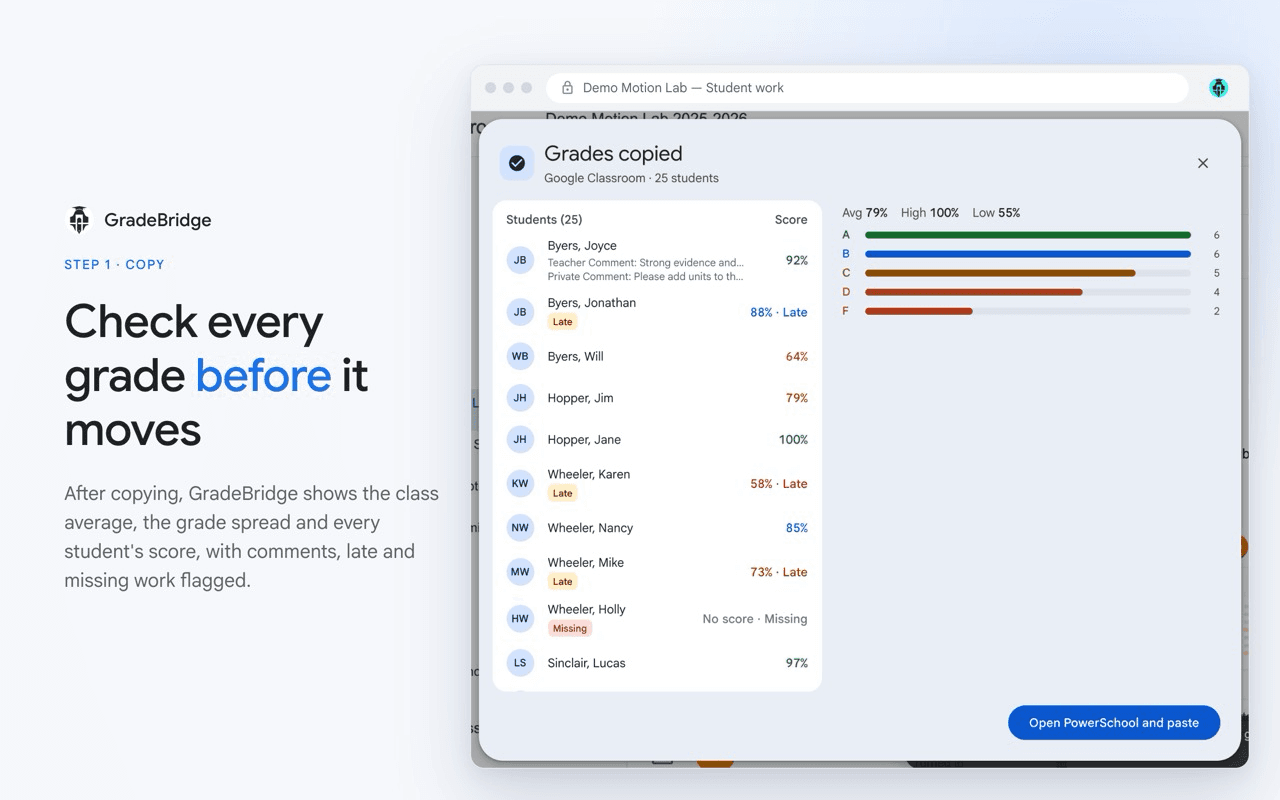
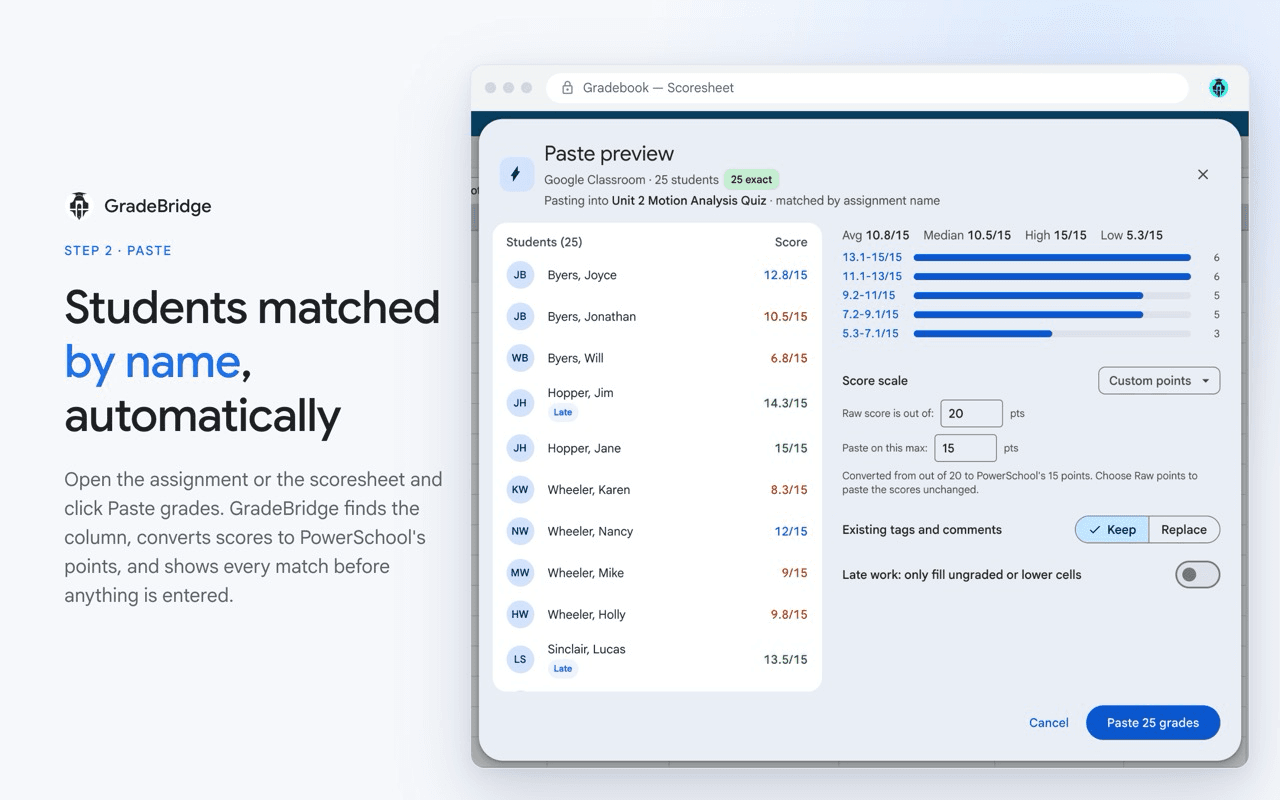
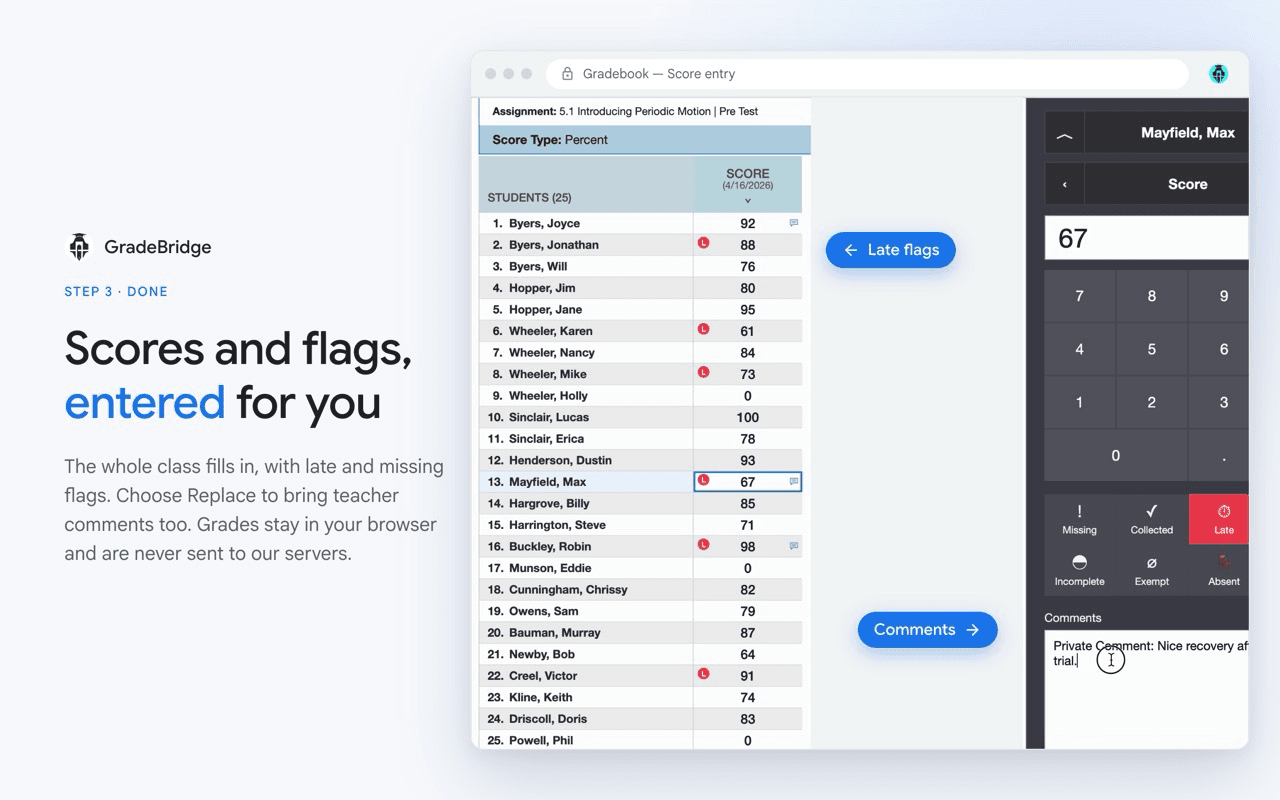
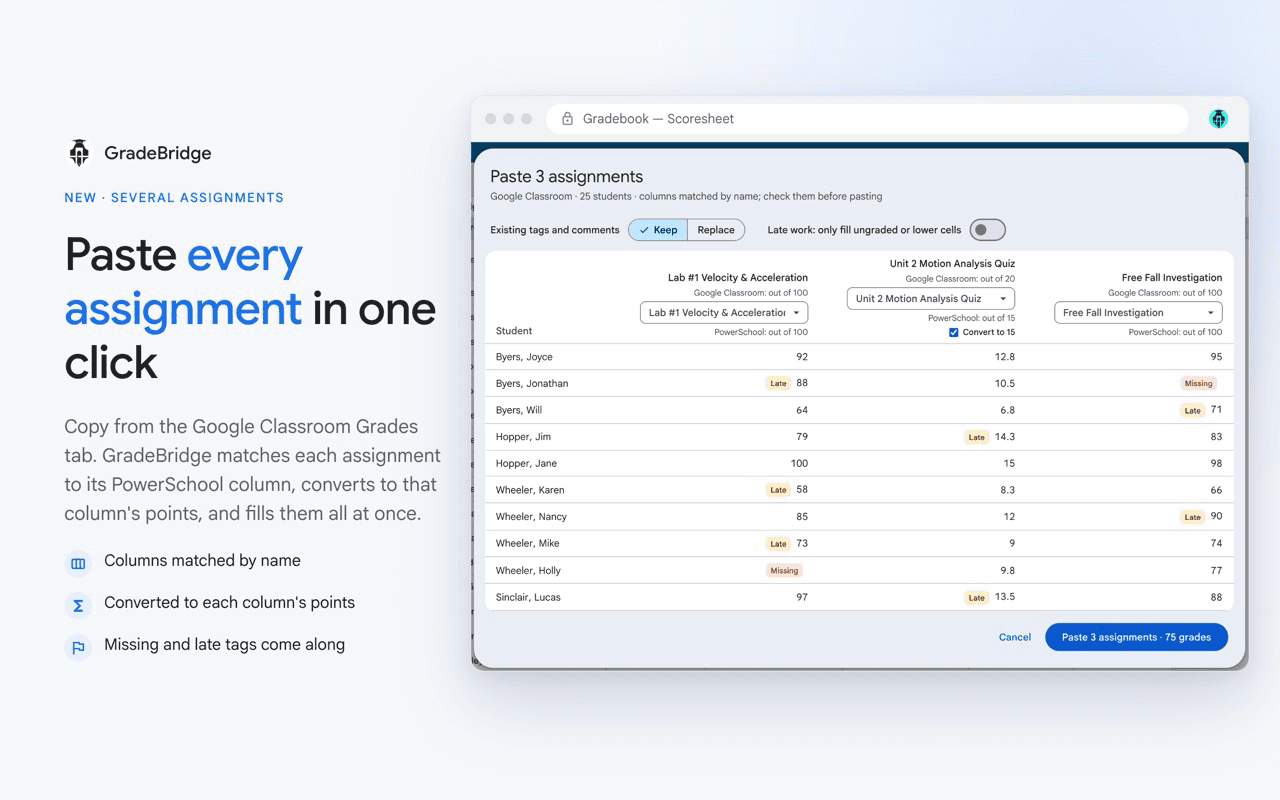
Screenshots of the real extension on demo pages. Every student name and score is made up.
How students are matched
Rosters rarely line up exactly. GradeBridge matches each copied name to your PowerSchool roster whatever the order (“Ana Rivera” and “Rivera, Ana”), and through middle names, accents, nicknames in parentheses and suffixes such as Jr. Students it can't match are listed before you paste and are never pasted by guesswork. Match one by hand once and GradeBridge remembers it for that class.
Scores, scales and tags
- Scores are converted to the PowerSchool assignment's points when you choose: 8/10 in Classroom becomes 12 on a 15-point assignment. Percentages, the AP 1–5 scale, custom scales and letter grades are supported. Score scales.
- GradeBridge won't paste a score above the assignment's maximum without asking, and it stops safely if PowerSchool rejects a score.
- Missing, Late and other status tags come along with the score. Comments are optional. Status tags and comments.
- Sync (the default) fills new and changed grades but keeps grades you changed yourself in PowerSchool. Replace makes PowerSchool match the source. Sync and Replace.
What stays on your computer
GradeBridge reads grades from the page you have open and types them into PowerSchool inside your own browser. Student names and grades are never sent to GradeBridge's servers. GradeBridge doesn't connect to PowerSchool's or Google Classroom's systems on its own: it only works with the pages you open, signed in as you. Your Google sign-in, plan and paste count are the only things stored on our servers.
Guides for your platform
Step-by-step instructions for Google Classroom, DeltaMath, Google Sheets, Excel and every other supported platform.
Try it on your next assignment
Your first 10 pastes are free, with every feature. No payment details needed.
Then $5/month or $39/year